From brand kit to a scheduled channel: build your first show in ChannelOS
A step-by-step walkthrough: create a brand kit, generate an on-brand show with AI, preview it, then build a channel and put the show on a repeating weekly schedule.
The gym down the road has a timetable taped to the studio door, a whiteboard with today’s changes on it, and a printed trainer sheet that still lists somebody who left in March. All three were correct once. Keeping them correct is a job nobody has time for, which is exactly the job a schedule does instead.
This is the happy path from nothing to a screen that runs itself: brand kit → AI show → preview → channel → repeating schedule. Five steps, in order, the way ChannelOS expects them.
1. Build a brand kit (do this once)
Open Brand kits (/brand) and click New brand kit. You don’t need a website — the dialog says so. You have three ways to feed it:
- A logo or brand image — ChannelOS extracts a color palette from it.
- A brand document — drop a PDF/TXT/MD or paste your guidelines, and it pulls your voice and tone.
- A website — optional, if you have one.
Click Draft & create and AI drafts a full spec you then refine in the editor: five colors (primary, secondary, accent, neutral, background), typography (heading / body / mono fonts), logo & footer marking, imagery settings, tone of voice, and layout defaults.
Two imagery settings matter most for cost and look:
- Media source — Pexels (free) or AI (paid). Pexels pulls free stock; AI generates per-slide imagery with credits.
- Allow video clips — drops a looping Pexels clip on suitable slides.
Set the kit to Active and, if it’s your main brand, Make default. Now every show starts on-brand.
2. Describe the show — AI builds it in the editor
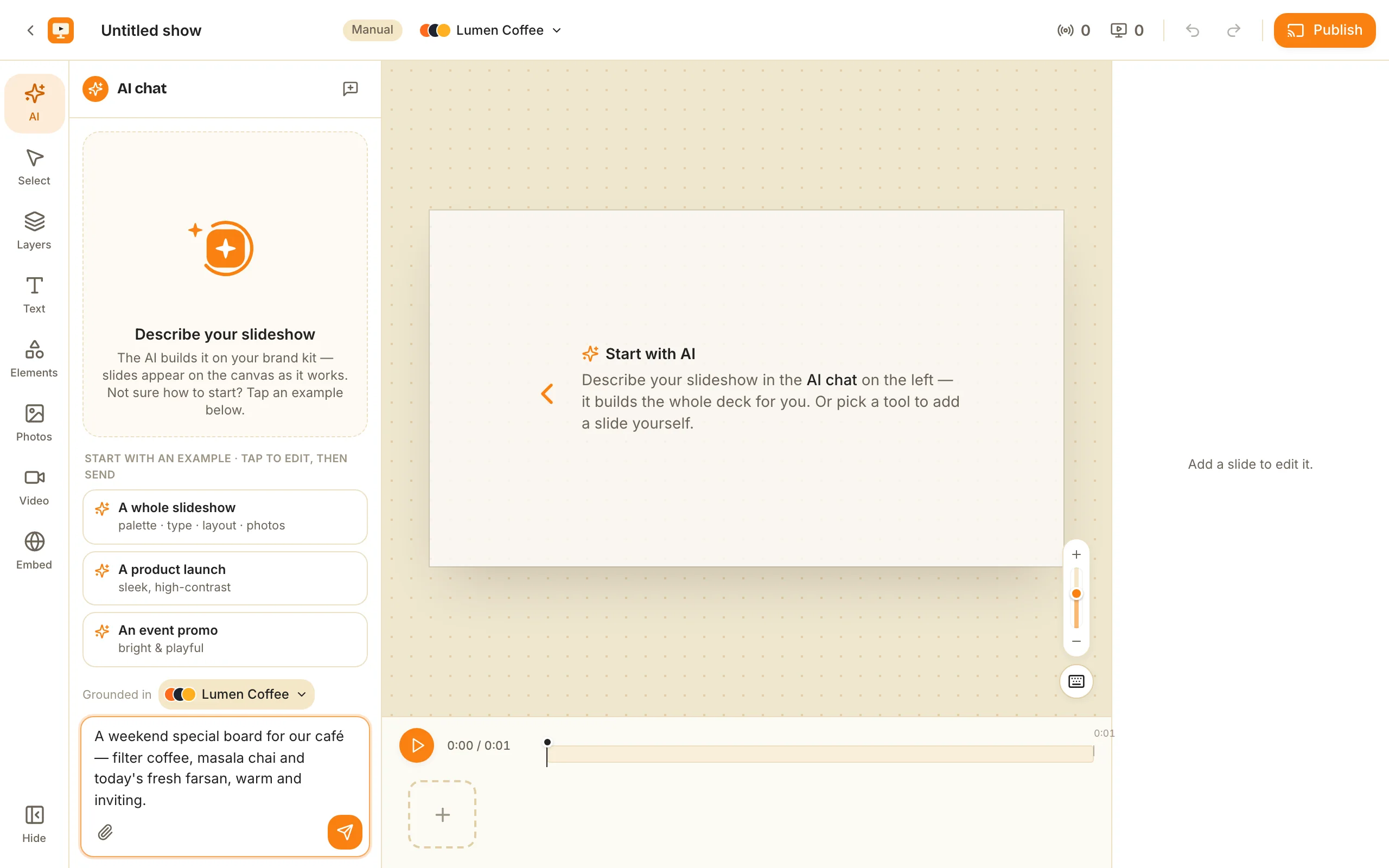
Click New show and you land straight in the editor with the AI chat open — no separate setup form. It’s already grounded in your active brand kit (a “Grounded in [your kit]” selector lets you switch), so anything it drafts starts on-brand.
- Type what the screen is for — “A welcome loop for our lobby with today’s meetings and guest Wi-Fi.” Tap-to-edit example starters are there if you want a jumping-off point.
- Attach context (optional) — from the chat’s attach, drop a PDF (text, structure and colours are extracted), images (mark each Use it or Inspo), or a webpage URL.
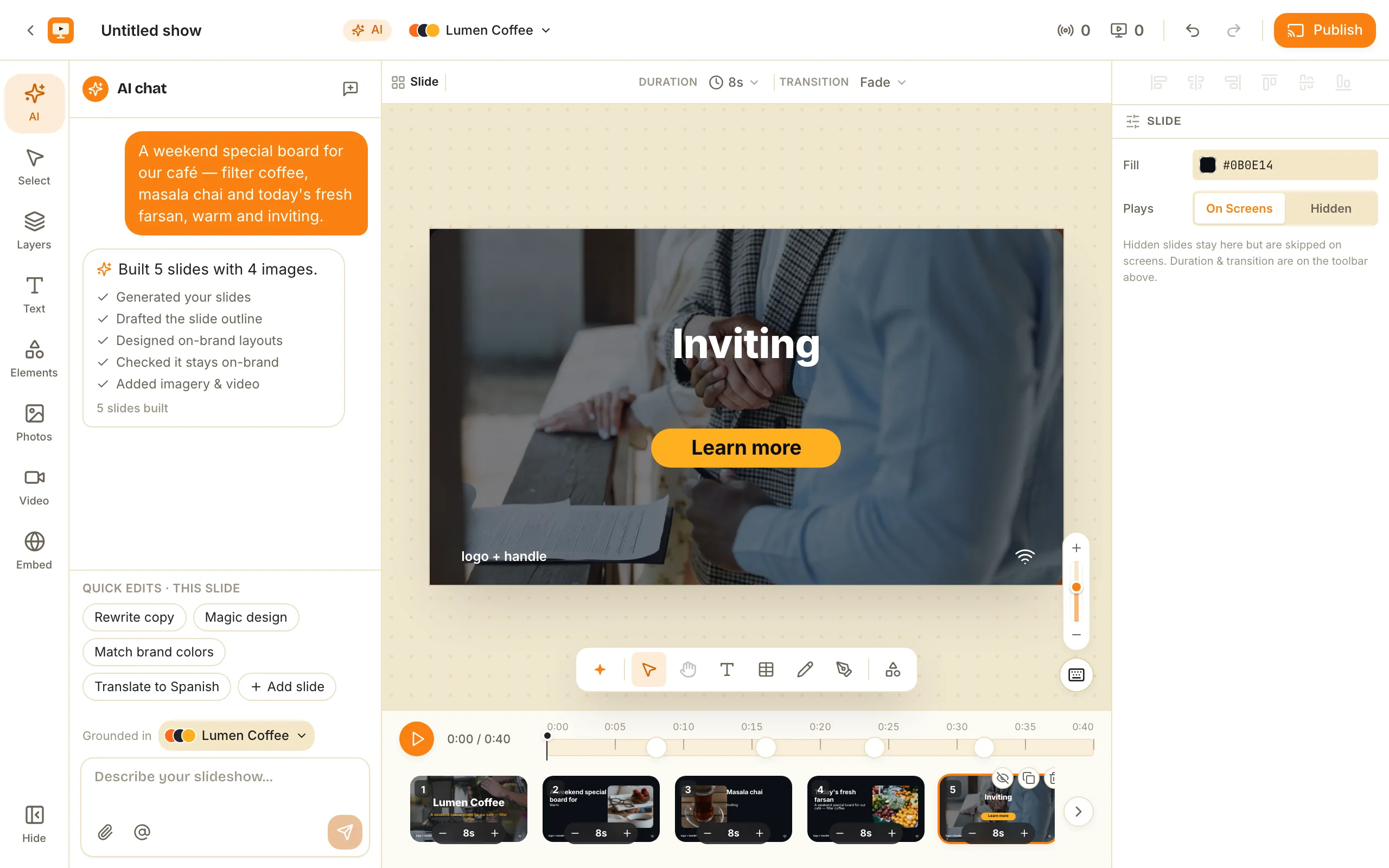
Send it, and the AI builds the whole deck: it drafts the outline, designs on-brand layouts, adds imagery, and reports back — “Built 5 slides with 4 images” — as the slides appear on the canvas.
3. Preview and refine — right where it built
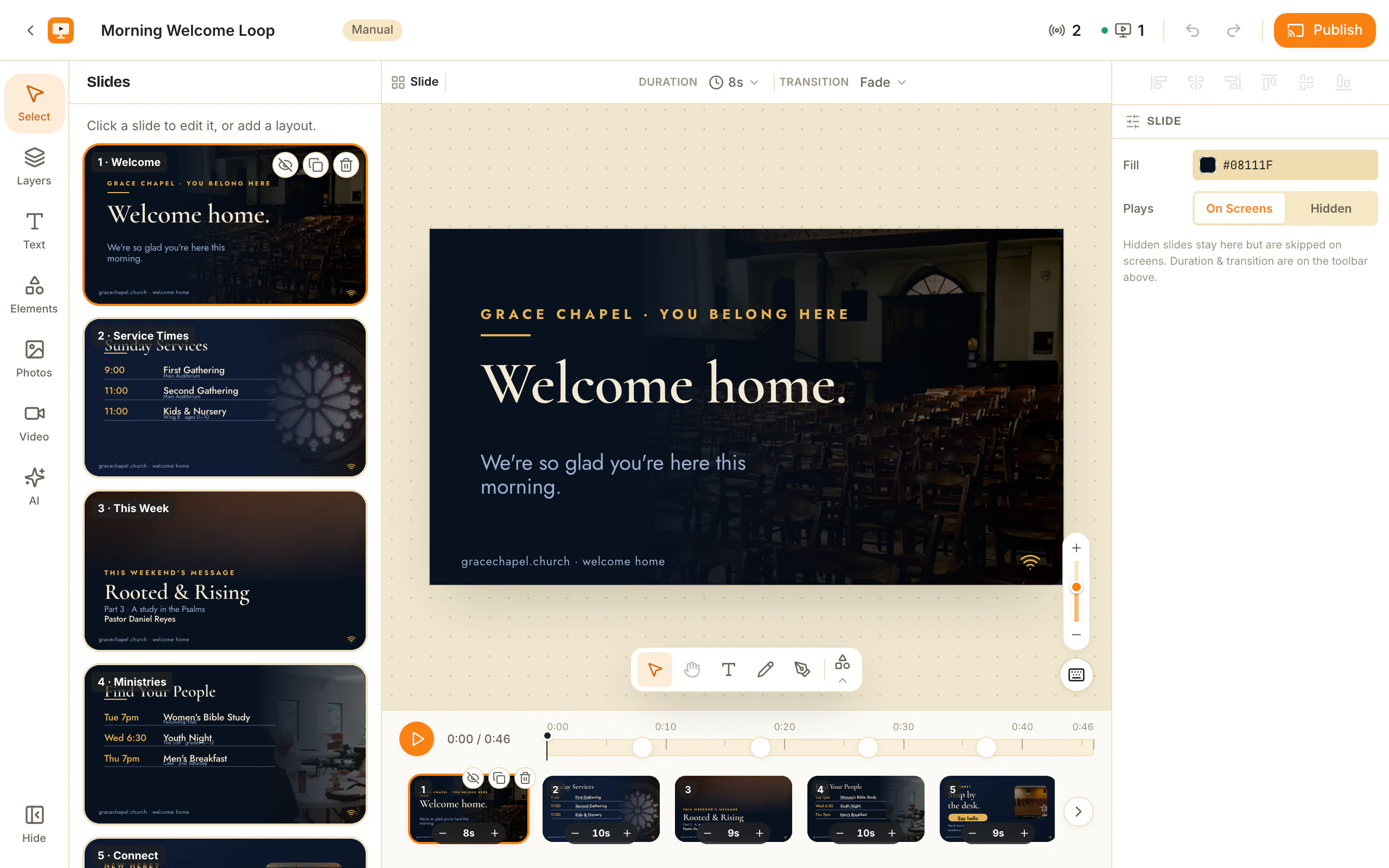
You’re already in the editor (/shows/{id}/edit) with every slide drawn on-brand — this is your preview. Click through the slides, watch the layout, durations and transitions. Everything is editable: nothing here is a flat export. Per-slide quick edits (rewrite the copy, match brand colours, add a slide) sit in the AI chat, or nudge anything by hand on the canvas. Tweak now or move on — you can always come back, because edits propagate after publishing.
4. Create a channel
A show is the content; a channel is the daily plan a screen tunes into. Open Channels (/channels) → New channel.
Start from a template to skip the blank page:
- Café Day — Breakfast, Lunch and Evening shows across the day, weekdays.
- Retail Floor — Morning / Afternoon / Evening sale, all days.
- Events — a single all-day Welcome.
- Blank — name it, pick Landscape or Portrait, build from scratch.
Click Create channel and you land on the channel’s timeline.
5. Schedule the show to repeat
On the channel page you get a full-day timeline. Click an empty spot (or use the schedule button) to open Schedule a show. Your shows are listed newest-edited first (search by name if you have a lot) — select the one you just made, then set the slot:
- Airing — start and end time, with one-tap duration chips.
- Repeat — this is the important one:
- Once — a single date.
- Weekly — pick the weekdays (M T W T F S S). This is how you daypart: a breakfast show Mon–Fri 6–11, a different one 11–4, and so on.
- Date range — runs between two dates.
Add it and you’re done. Drag a block to move it, drag its edges to change duration, and ⌘Z / ⌘⇧Z undo and redo schedule changes.
That’s the loop
Brand kit once → generate on-brand → preview → channel → weekly schedule. The payoff is the part you don’t do again: edit the show later and every screen on that channel updates in real time. Set it once a week; it just runs.
Set it up once and then check it in three weeks. If the board is still saying something true and you have not touched it, the schedule is doing the work and you have your afternoon back. If it is stale, the schedule was wrong, not the screen.
Frequently asked questions
- Do I need a website to make a brand kit?
- No. In the New brand kit dialog you can drop in a logo or brand image for the colors and a brand document (or pasted text) for the voice. AI drafts colors, fonts and tone from those — a URL is optional, not required.
- How does the AI know my brand when I generate a show?
- The editor's AI chat is grounded in your active brand kit — its colors, fonts, footer and tone — shown by a "Grounded in [kit]" selector you can switch. So every slide is drafted on-brand instead of a generic look you'd have to correct.
- What does a repeating schedule look like?
- When you schedule a show on a channel you set a time range (start–end) and a Repeat mode: Once, Weekly (pick the weekdays), or a Date range. Weekly with dayparts is how you set a café or lobby once and let it run every week.
- If I edit the show after scheduling it, do I re-publish?
- No. A screen's content is derived from the show and the channel schedule, not pushed file-by-file. Edit the show and every screen tuned to that channel updates in real time — no re-publish step.
Your screen is two minutes away.
Set the brand once and every new board comes out matching it.
Free screens show a ChannelOS banner, and about every 2 minutes it opens into a full ChannelOS slide; any paid plan removes both.