Finding your channels and shows, and what the editor can do
Where channels and shows live in ChannelOS, how to open and edit them, and a full tour of the slide editor: canvas, toolbar, elements, Pexels media, background removal and keyboard shortcuts.
The moment that decides whether a screen stays current is small and unglamorous: a price changed, you are behind the counter, and you have about ninety seconds before the next customer. If finding the right show takes longer than fixing it, the fix does not happen, and the wrong number stays on the wall for a fortnight.
Once you’ve built a few things, the two questions are always where is it and how do I change it. ChannelOS keeps that simple: shows are your content, channels are how content airs. Here’s where each lives and what the editor gives you.
Channels — the broadcast timelines
Open Channels (/channels). Each channel is a row showing its status (On air / Takeover), the show airing now, its aspect and a live screen count. Click a channel to open its detail page (/channels/{id}), where the full-day timeline shows the day’s schedule, the airing-now banner names the current show, and you can schedule, drag and resize program blocks.
Shows — your slide-shows
Open Shows (/shows). It’s a grid of cards: a slide thumbnail, the show name, a source badge (AI / Manual / Template), slide count and aspect. Filter by All / AI / Manual / Templates, or hit New show to make another.
Opening the editor
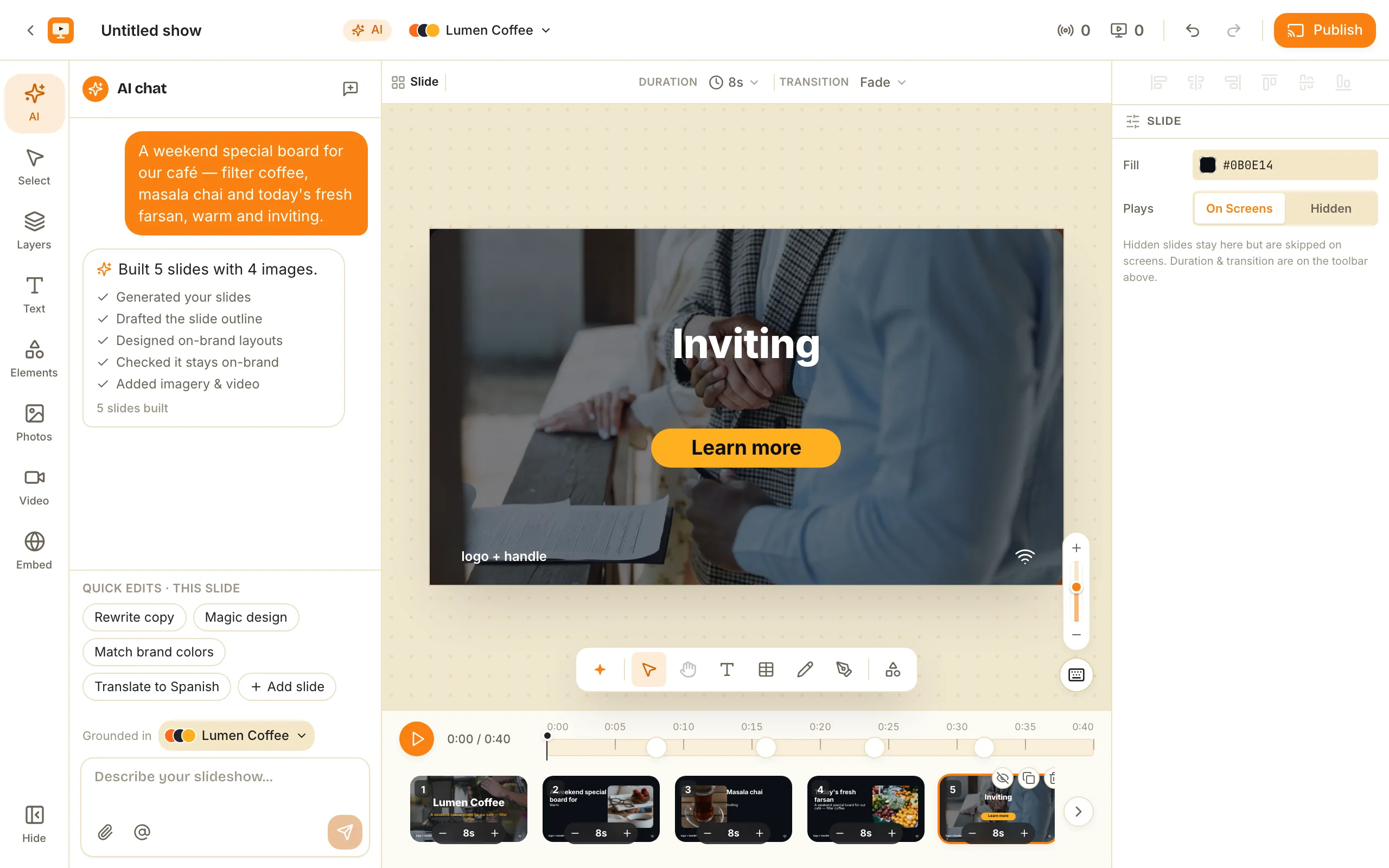
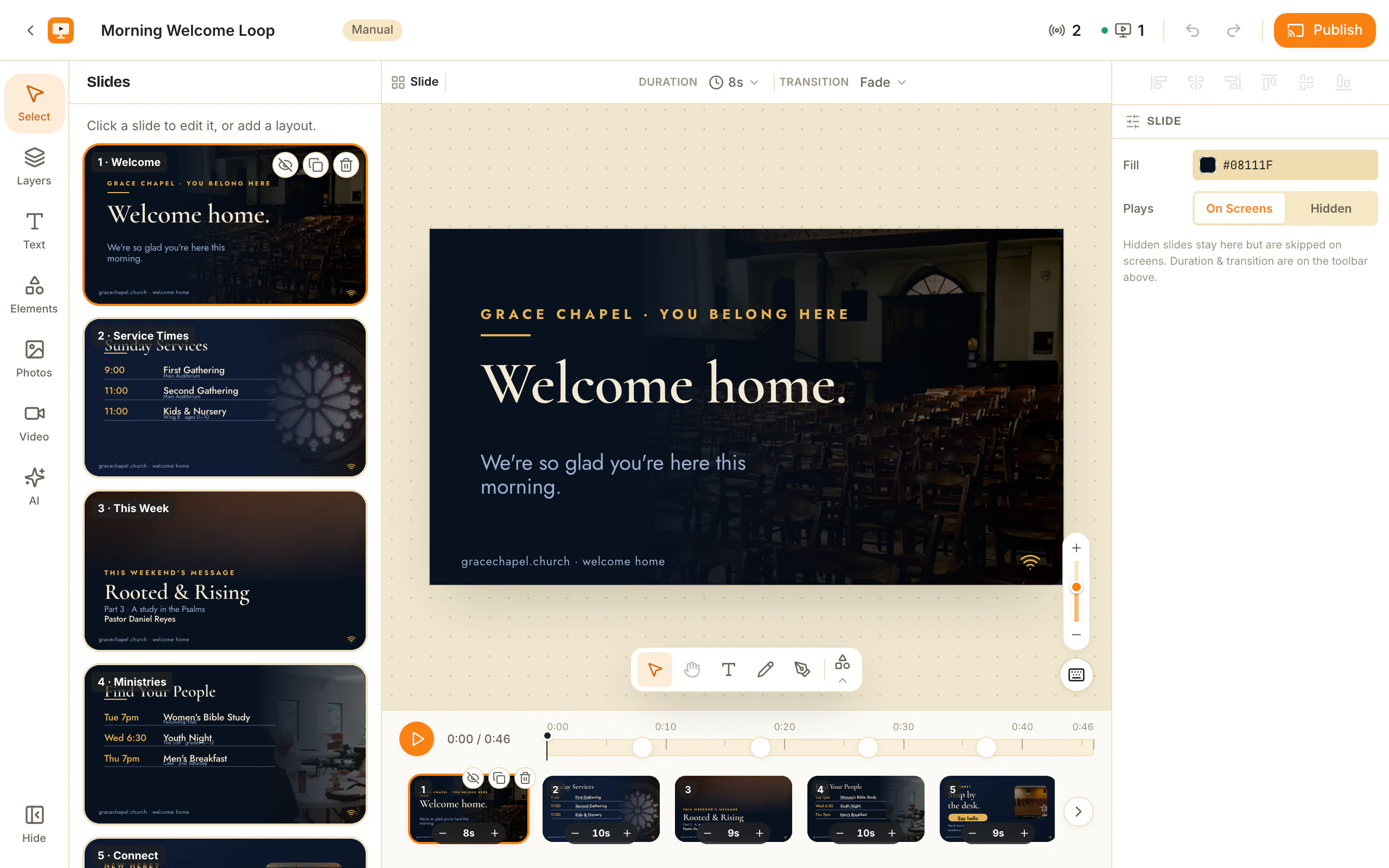
Click a show card (or its Edit item) and you drop into the full-screen editor at /shows/{id}/edit: a top bar with the show name, undo/redo, save and Publish; a tool rail on the left; the canvas in the center; and a fixed toolbar that changes with whatever you’ve selected.
The canvas — direct manipulation
Click an element to select it; transform handles appear. Drag the body to move, corner handles to resize, the top handle to rotate. Arrow keys nudge 1px, Shift+Arrow moves 10px. ⌘-click adds to a selection, and ⌘G groups several elements into one transformable unit (baked geometry — the player stays group-blind, so what you build is exactly what airs).
The toolbar — contextual by type
The toolbar is fixed and shows controls for what’s selected:
- Text — font, size, bold/italic/underline, alignment, text and highlight color.
- Image — fit, corner radius, filters, overlay, border, shadow.
- Video — trim window, mute, loop, plus the same styling controls.
- Multiple items — align (left/center/right, top/middle/bottom), distribute, and Group.
- Nothing selected — the slide itself: Duration (seconds) and Transition (fade / slide / none).
The tool rail — adding things
Down the left side:
- Text — presets: Add a heading, Add a subheading, Add body text, Add a caption. Double-click any text to edit inline with full rich text (bold, italic, underline, lists, color, highlight, font, size).
- Elements — shapes and live widgets.
- Photos — drag-and-drop upload, your previous uploads, and a free Pexels photo feed pre-seeded to your brand. Click or drag a tile onto the canvas.
- Video — the same, for free Pexels clips.
- AI — Rewrite this slide or Add a slide from a prompt, with a live progress thread.
Background removal is built in: drop an image and turn it into a clean transparent cutout, no external tool.
Keyboard shortcuts — one registry, every surface
Every chord is defined once and surfaced in a ⌘ / Ctrl help overlay (the floating button, bottom-right), so the help and the behavior never drift. mod is ⌘ on macOS, Ctrl on Windows/Linux, and shortcuts pause while you’re typing in a field.
| Action | macOS | Windows / Linux |
|---|---|---|
| Undo | ⌘Z | Ctrl+Z |
| Redo | ⌘⇧Z / ⌘Y | Ctrl+Y |
| Copy | ⌘C | Ctrl+C |
| Cut | ⌘X | Ctrl+X |
| Paste at pointer | ⌘V | Ctrl+V |
| Duplicate | ⌘D | Ctrl+D |
| Delete | Del / ⌫ | Del / ⌫ |
| Select all | ⌘A | Ctrl+A |
| Deselect | Esc | Esc |
| Group | ⌘G | Ctrl+G |
| Ungroup | ⌘⇧G | Ctrl+Shift+G |
| Bring forward / back | ⌘] / ⌘[ | Ctrl+] / Ctrl+[ |
Copy/paste drops at the pointer (clamped to the canvas), so duplicating an element lands it where you’re looking, not stacked on the original.
Managing slides
In the slide panel, click a thumbnail to open it, duplicate or delete from hover or the right-click menu, rename in place, and drag to reorder. Add a slide directly, or generate one from a prompt in the AI tool.
The thread that ties it together
Find it in Shows or Channels, open it, change it — and because a screen’s content is derived from the show and the schedule, your edits reach every tuned screen in real time. No re-publish, no device sync. Edit once; it airs everywhere.
Worth timing yourself once: from unlocking your phone to the corrected price being live on the TV. Under a minute and the screen will stay current for years. Over five and it will be stale by next month, whatever you intend today.
Frequently asked questions
- Where do I find shows versus channels?
- Shows are at /shows — a grid of every slide-show with thumbnails, source badges and filters. Channels are at /channels — the broadcast timelines your screens tune into, each with its schedule and live screen count. They're separate sections because a show is content and a channel is the plan that airs it.
- How do I start editing a show?
- Open Shows, click a show card (or its Edit menu item), and you land in the full-screen editor at /shows/{id}/edit. From there click any slide to open it and any element to select and transform it.
- Are the keyboard shortcuts the same everywhere?
- Yes — that's the rule. Every chord is registered in one shared registry that drives both the keydown handler and the help overlay, so what you press and what the help shows can never drift. Undo is ⌘Z, Redo ⌘⇧Z/⌘Y, Duplicate ⌘D, Delete Del/⌫, Group ⌘G.
- Does the editor cost credits?
- Editing itself is free. Pexels photos and videos are free stock. Costs only appear when you generate AI imagery per slide — that's opt-in via the brand kit's media source or the New show imagery setting.
Your screen is two minutes away.
Open the editor on your first screen and keep whatever you make there.
Free screens show a ChannelOS banner, and about every 2 minutes it opens into a full ChannelOS slide; any paid plan removes both.